Color coded time blocks: one color per goal.
Give each goal one color and use it for every block assigned to that goal. Keep a written label beside the color, place blocks with start and end times, and add up the hours. Try the six-color scheme below to see where work, daily needs and personal priorities fit.
Start on the webAlso available on iPhone and Android.
Choose colors by goal: a worked six-color scheme
Start with the activities you want to total separately, then assign each a distinct color. This is an example legend, not a required palette or a claim that a particular color changes performance.
| Color | Goal | Example blocks | Day’s hours |
|---|---|---|---|
| Purple | Sleep | Overnight and evening sleep | 9 |
| Blue | Project work | Draft and revise a report | 6 |
| Gray | Daily needs | Meals, getting ready and travel | 4 |
| Orange | Admin | Messages and small tasks | 1 |
| Teal | People | Dinner together and an evening visit | 3 |
| Pink | Learning | Read and practise a language | 1 |
| Total | 24 | ||
Choose one main goal for each block so the same hour is counted once. In this example, dinner together belongs to People, while a solo lunch belongs to Daily needs; decide the rule before totaling the day.
Keep colors stable across days so blue continues to mean Project work. If two goals are hard to distinguish, change one shade and keep both names visible; the label should still explain the block when the colors look alike.
What color coding shows at a glance
- Where a goal appears. Repeated blue blocks show that report work has more than one place in the day.
- How the day is divided. The legend totals reveal six project hours alongside three hours for people and one for learning.
- Which priority has no slot. If Learning is on your goal list but pink never appears, choose a time for it or explicitly leave it out today.
- Where categories alternate. Several orange blocks between blue ones flag admin interruptions in the plan; check whether those response times are necessary before combining them.
Colors identify categories, but the block’s duration tells you the hours. A colored plan also cannot prove what happened: keep the planned allocation separate from the time you actually enter.
A sample day with color coded time blocks
This fictional day uses 24-hour clock times from midnight to midnight. Its durations illustrate the arithmetic, so replace the commitments and amounts with your own.
| Time | Color / goal | Activity | Hours |
|---|---|---|---|
| 00:00–07:00 | Purple / Sleep | Overnight sleep | 7 |
| 07:00–08:00 | Gray / Daily needs | Breakfast and get ready | 1 |
| 08:00–09:00 | Gray / Daily needs | Travel | 1 |
| 09:00–12:00 | Blue / Project work | Draft report | 3 |
| 12:00–13:00 | Gray / Daily needs | Solo lunch and errands | 1 |
| 13:00–16:00 | Blue / Project work | Revise report | 3 |
| 16:00–17:00 | Orange / Admin | Messages and small tasks | 1 |
| 17:00–18:00 | Gray / Daily needs | Return travel and preparation | 1 |
| 18:00–19:00 | Teal / People | Dinner together | 1 |
| 19:00–20:00 | Pink / Learning | Language reading and practice | 1 |
| 20:00–22:00 | Teal / People | Evening visit | 2 |
| 22:00–24:00 | Purple / Sleep | Evening sleep | 2 |
| Total | 24 | ||
Check the repeated colors: purple totals 7 + 2 = 9 hours, blue 3 + 3 = 6, gray 1 + 1 + 1 + 1 = 4, orange 1, teal 1 + 2 = 3 and pink 1. Every row ends where the next begins.
To leave half an hour open, shorten the afternoon report block to 15:30 and keep 15:30–16:00 unassigned. Project work becomes 5.5 hours, the other goals total 18, and the remaining 0.5 keeps the day at 24.
For more schedules to adapt, use the daily schedule planner.
How Daylight uses goal colors
Daylight gives each goal its own color and target hours, so blocks use the color of the goal they belong to. Place your day across all 24 hours in 15-minute steps, with blocks from 15 minutes to 8 hours and the unplanned part of the day in view.
Daylight logs the time you enter against a goal, with an optional note; you can edit or delete entries. Compare those entered hours with your plan before deciding whether a goal needs a different allocation.
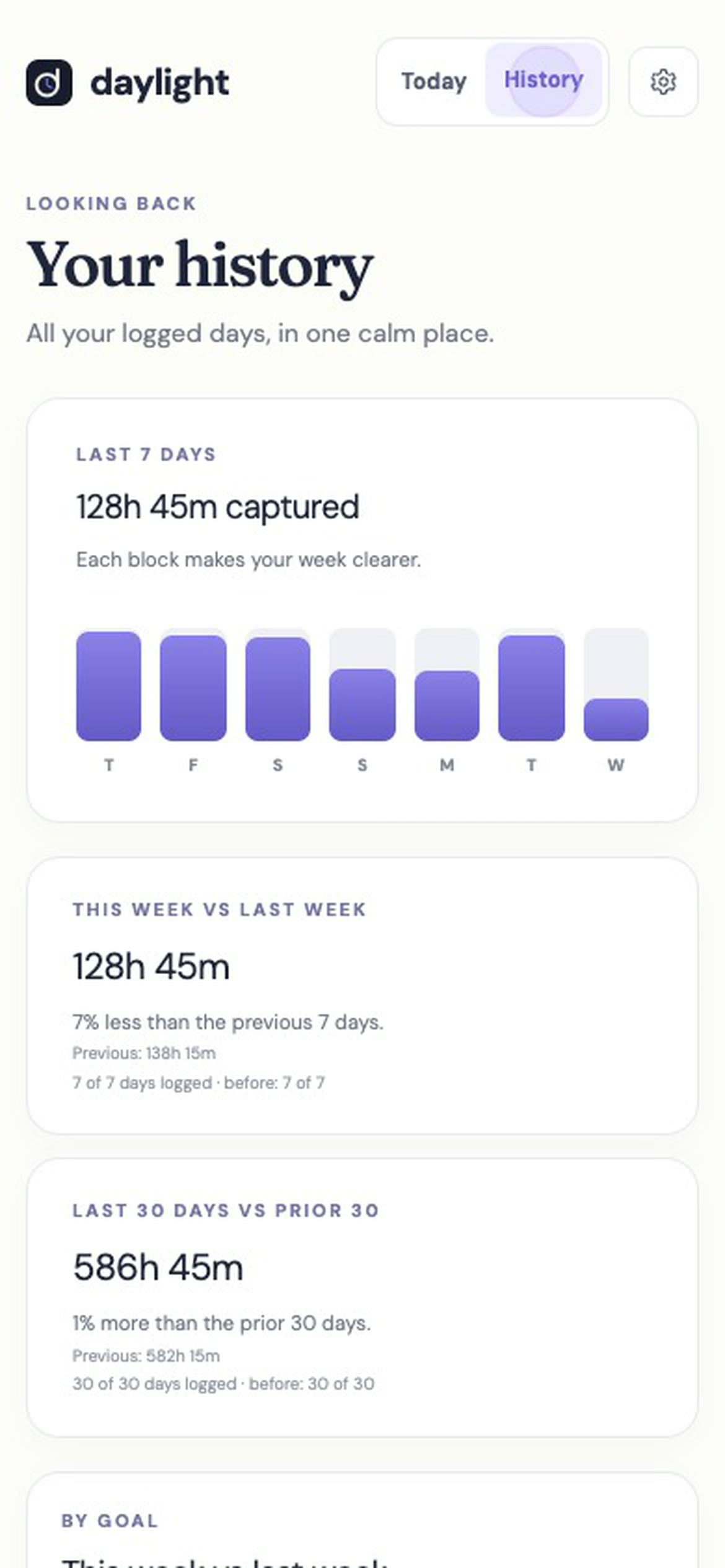
History compares this week with last week and the last 30 days with the 30 before. Use those period comparisons to review your goal hours while keeping the meaning of each color consistent.
Daylight Pro is $4.99 a month or $39.99 a year, plus applicable sales tax, with a 14-day free trial. There is no free plan: a valid payment method is required, and charging starts after the trial unless you cancel.
Sources
Read November 18, 2026. The six-color legend, planning advice and sample day are original illustrations; product features and trial terms follow these live Daylight pages.
- Daylight home page — goal colors, target hours, block sizes, entered time, History, platforms and pricing.
- Daylight time blocking guide — goal-based planning, logging and subscription terms.