Time blocking: how to time block your day.
Time blocking means giving each task its own block of time on the clock, with a start and an end, before the day begins. Instead of a list that says what to do, you get a plan that says when you will do it.
Start on the webAlso available on iPhone and Android.
From a list to a day that fits
Compare a task list with a timed day in our time blocking vs to-do list guide, including seven tasks placed into available hours.
Plan a freelance workweek
Planning around clients or remote projects? See time blocking for freelancers for a 30-hour week with client, admin and outreach blocks.
Choose a complete schedule
See our time blocking templates for a workday, a parent's day and a student's week, including every hour and a planned-versus-actual review.
Choose what holds your blocks
Use our time block planner checklist to compare paper and app planning, check a complete day and review your weekly hours.
Daily schedules for different days
See the daily schedule planner for three hour-by-hour examples covering a 9-to-5 worker, parent at home and student.
Choose a daily planning approach
Our daily planner app guide compares lists, calendars and hour planning, with a complete 24-hour plan and an end-of-day review.
Plan in quarter-hour slots
For a detailed morning on a quarter-hour grid, follow the 15 minute planner and group adjacent slots for longer work.
Plan around school and care
For school runs, work windows and interruptions, use our time blocking guide for parents with a complete worked day.
How to time block your day in 5 steps
Count the hours you really have
Start from 24, not from 9 to 5. Take out sleep, meals and anything already booked. What is left is the time you can actually plan.
Choose what the hours are for
Pick the two or three goals that matter today and decide how long each one gets. A goal without a number of hours tends to get whatever time is left over.
Place the blocks on the clock
Put the hardest work where you think most clearly, often the morning. Give each block a start and an end, and keep it to one kind of work.
Leave room for what you can’t plan
Email, calls and small jobs still turn up. Give them their own block, and leave 15 to 30 minutes of open time between big blocks so one overrun doesn’t move the whole day.
Write down what actually happened
At the end of the day, note the time each goal really got. The gap between plan and log is what makes tomorrow’s blocks more realistic.
A time blocking example
Here is one workday, time blocked from 7:00 AM to 10:00 PM:
| Time | Block | Hours |
|---|---|---|
| 7:00–8:00 AM | Breakfast and getting ready | 1 |
| 8:00–10:30 AM | Deep work: the report | 2.5 |
| 10:30–11:00 AM | Email and messages | 0.5 |
| 11:00 AM–12:30 PM | Meetings | 1.5 |
| 12:30–1:30 PM | Lunch | 1 |
| 1:30–3:30 PM | Deep work: the report | 2 |
| 3:30–4:00 PM | Open time | 0.5 |
| 4:00–5:00 PM | Small tasks and calls | 1 |
| 5:00–6:00 PM | Commute and errands | 1 |
| 6:00–7:30 PM | Dinner | 1.5 |
| 7:30–9:00 PM | Side project | 1.5 |
| 9:00–10:00 PM | Reading | 1 |
That is 15 hours planned. The report gets 4.5 of them in two blocks, the side project gets 1.5 and reading gets 1. If the morning block runs 30 minutes over, it eats the open time at 3:30, not the side project.
Time blocking, timeboxing, task batching and day theming
For demanding tasks that need protected attention, see how to make time for deep work, with a two-hour-block week and logged-hour review.
- Timeboxing sets a fixed amount of time for one task and stops when it runs out. Time blocking places that time on the clock. Most people use both: a block from 8:00 to 10:30 is a 2.5-hour timebox.
- Task batching puts similar small jobs, like email or calls, in one block instead of scattering them through the day.
- Day theming gives a whole day to one area of work, for example Monday for planning and Friday for admin.
Common time blocking mistakes
For short focus intervals inside a planned block, try the on-page Pomodoro timer.
Need to check where your hours actually go before planning? Run a week-long time audit.
- Blocking every minute. A day with no open time breaks at the first interruption.
- Blocks that are too long. Past two or three hours, split the work and put a break between the blocks.
- Never checking the plan against the day. If you don’t write down what happened, you can’t tell whether your blocks are the right size.
- Planning only the workday. Evenings and weekends are where side projects and reading lose their hours.
Give your morning a defined window
The morning routine planner shows 30-, 60- and 90-minute schedules, with buffer time and a check against the whole day.
Time blocking with Daylight
You can time block on paper or in a calendar. Daylight is built for the whole loop, plan then log then compare:
- Goals with target hours: each goal gets a color and the hours you want it to have.
- Blocks across all 24 hours: from 15 minutes to 8 hours, in 15-minute steps, with the unplanned part of the day in view.
- Logging what happened: you enter time against a goal, with a note if you want one. Daylight logs the time you enter; it does not watch your devices.
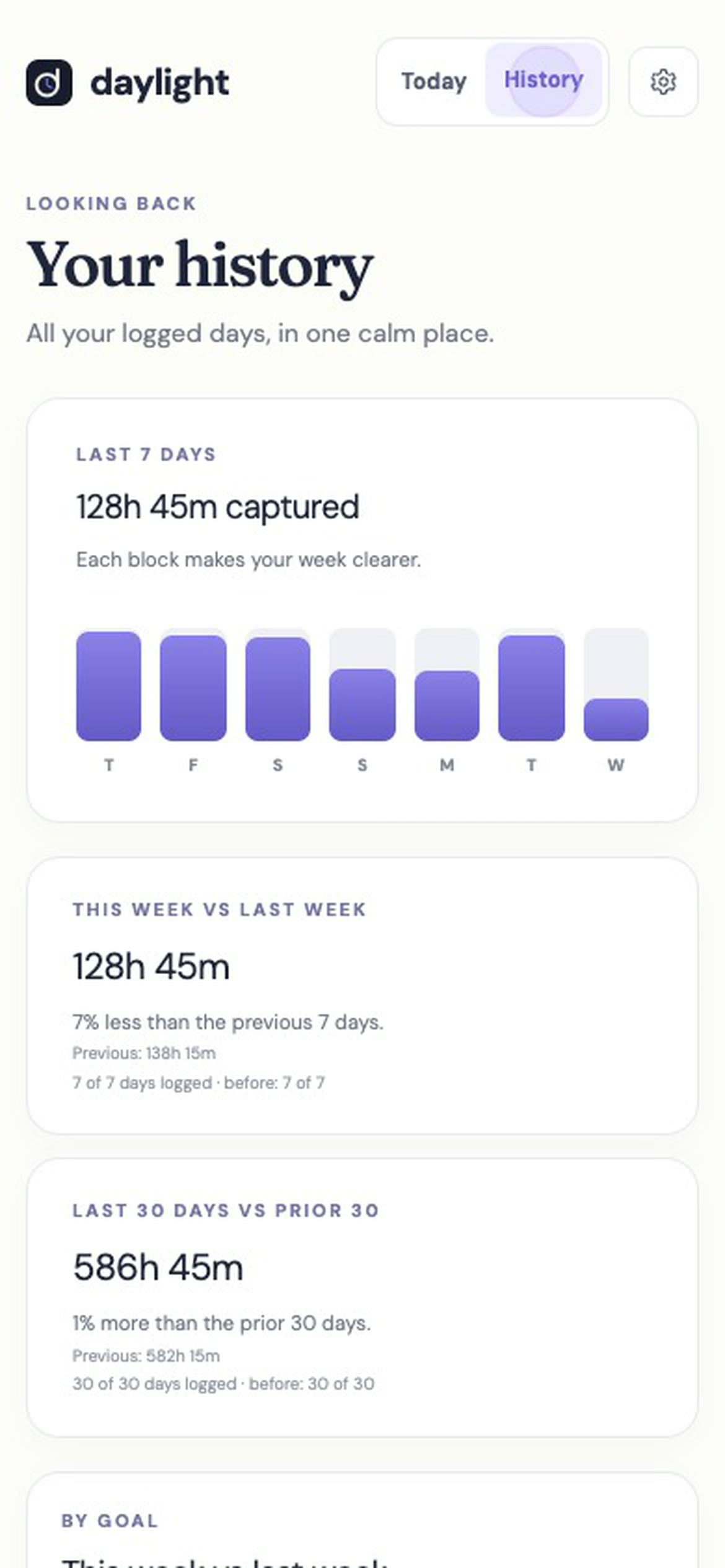
- History: this week beside last week, and the last 30 days beside the 30 before.
For the other techniques that go with time blocking, read our time management guide.
Daylight Pro is $4.99 a month or $39.99 a year, plus applicable sales tax, with a 14-day free trial. There is no free plan: a valid payment method is required, and charging starts after the trial unless you cancel. Daylight support explains how to manage it on the web, App Store and Google Play.
Time blocking FAQ
How long should a time block be?
Most blocks work best at 30 minutes to 2 hours. Deep work can take up to about 3 hours; small jobs fit in 15 to 30 minutes.
What if a block runs over?
Let it eat the next open time, not the next block. If the same block runs over most days, give it more time in tomorrow’s plan.
Is time blocking the same as timeboxing?
Not quite. Timeboxing limits how long a task gets; time blocking also decides when on the clock it happens.
Does Daylight have a timer?
No. You plan blocks ahead and enter the time you spent afterwards.
Choose a calendar or a planning app
Use our time blocking app vs calendar comparison to see the same day as scheduled slots and goal-hour totals.
Comparing planning apps?
Read our Sunsama alternative comparison to choose between task planning and budgeting hours around goals.
Plan a student week
For classes, shifts and coursework, use the student time blocking guide to place study sessions within a worked weekly budget.