Export a time log to CSV.
In Daylight, open Settings to export your time history as a CSV file. For spreadsheet analysis, check the exported headers, keep minutes numeric and total entries by goal; use the JSON backup option when you want your whole account instead.
Start on the webAlso available on iPhone and Android.
What a useful time-log export contains
Use this checklist to inspect a file before analysing it. These are suggested analysis fields, not a claim about Daylight’s exported column names or file layout.
- Date: the date the entry belongs to, with the year included; use one consistent format such as 2026-11-16.
- Start: the recorded start time, if available; identify the time zone when combining logs from different places.
- End: the recorded finish time, if available; include the end date for an entry crossing midnight.
- Goal: a consistent category name so all entries for the same activity group together.
- Minutes: a numeric duration, with the unit kept in the header rather than typed into each value.
- Note: enough context to recognise the activity and explain corrections or unusual entries.
If an export contains only a duration, leave unavailable start and end times blank rather than inventing them. Keep the original file unchanged and do any renaming or calculations in a separate analysis sheet.
A sample CSV shown as a table
This fictional four-entry log covers selected activities on November 16–17, 2026, not two complete days. Each table row represents one CSV record; the six headers would occupy columns A–F in a spreadsheet.
| Date | Start | End | Goal | Minutes | Note |
|---|---|---|---|---|---|
| 2026-11-16 | 09:00 | 10:00 | Writing | 60 | Draft outline |
| 2026-11-16 | 10:15 | 10:45 | Admin | 30 | Reply to messages |
| 2026-11-17 | 09:00 | 09:45 | Writing | 45 | Revise draft |
| 2026-11-17 | 11:00 | 11:30 | Learning | 30 | Read chapter |
The sample is an illustration of useful analysis data, not a screenshot or reproduction of a Daylight export.
Import the file and sum minutes by goal
Open the CSV in a spreadsheet
In Google Sheets on a computer, use File → Import, choose the CSV and select Insert new sheets to keep existing sheets intact. If the columns do not separate correctly, choose Comma as the separator before importing.
Check the imported values
For this example, put the headers in row 1 and the four records in rows 2–5. Confirm that E2:E5 are numbers, the dates mean November 16 and 17, and every Writing entry uses the same spelling.
Add only the matching goal’s minutes
Google Sheets SUMIF tests one range against a condition and adds the matching values from another range. With goals in D and minutes in E, this formula returns 105:
=SUMIF(D2:D5,"Writing",E2:E5)For your own file, replace these ranges with the actual goal and duration columns, and extend both ranges to cover all entries.
| Goal | Calculation | Minutes | Hours |
|---|---|---|---|
| Writing | 60 + 45 | 105 | 1.75 |
| Admin | 30 | 30 | 0.5 |
| Learning | 30 | 30 | 0.5 |
| Total | 105 + 30 + 30 | 165 | 2.75 |
Divide minutes by 60 to get decimal hours: 105 ÷ 60 = 1.75 hours, which is 1 hour 45 minutes. The goal totals reconcile with the four source rows: 60 + 30 + 45 + 30 = 165 minutes.
Before comparing periods, check for duplicate rows, overlapping entries and missing goals in the summary. For a longer baseline and a review of what to change, follow the time audit guide.
Daylight’s CSV export and JSON backup
The live Daylight site describes two Settings options: time history as CSV, and the whole account as a JSON backup. It does not publish the CSV schema or describe a backup restore process, so inspect your actual file rather than assuming it matches the example above.
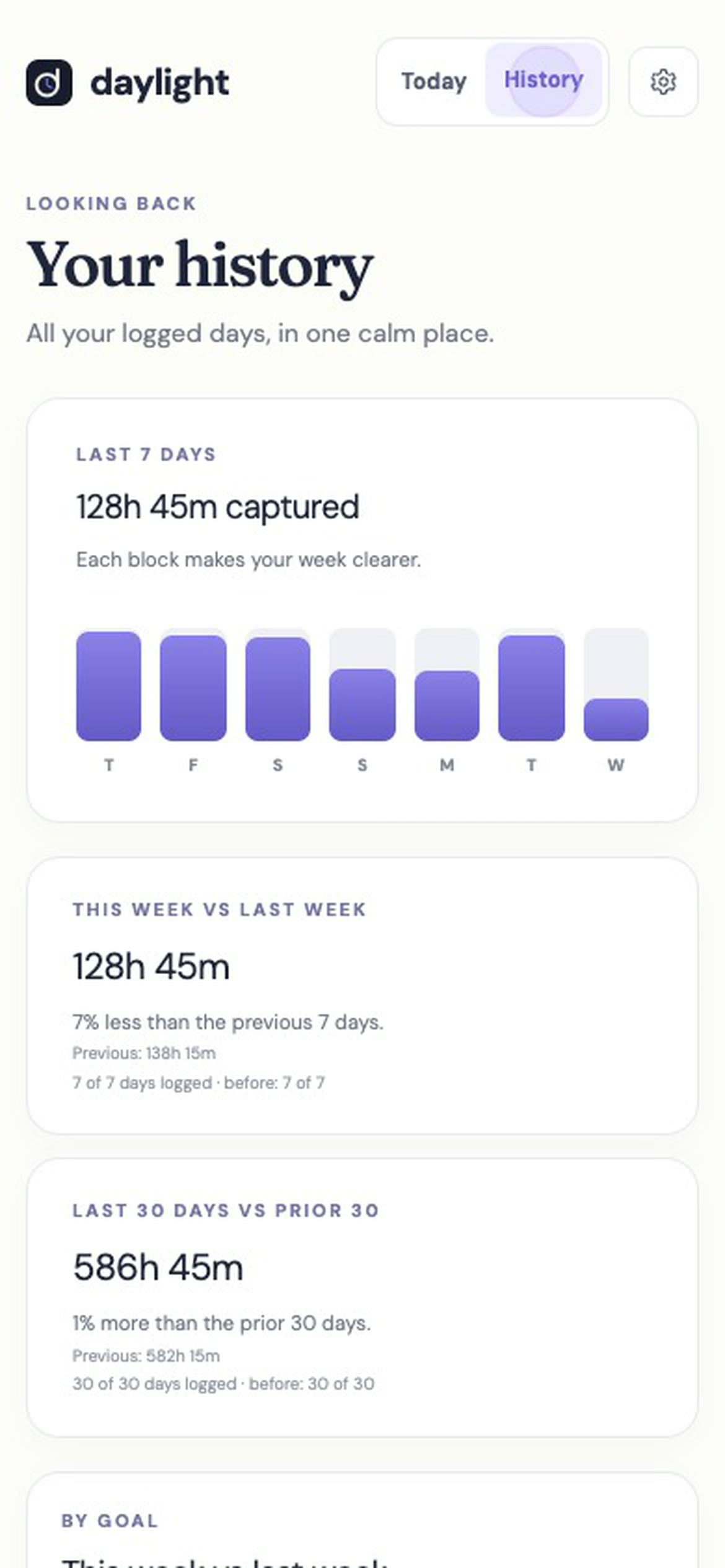
Daylight logs the time you enter against a goal, with an optional note; you can edit or delete entries. History compares this week with last week and the last 30 days with the 30 before.
Daylight Pro is $4.99 a month or $39.99 a year, plus applicable sales tax, with a 14-day free trial. There is no free plan: a valid payment method is required, and charging starts after the trial unless you cancel.
Sources
Read November 18, 2026. The sample records, field checklist and worked totals are original illustrations.
- Daylight home page — Settings CSV and JSON options, entered-time logging, History and trial terms.
- Daylight planning and review guide — guide structure and subscription wording.
- Google Sheets: Import data sets and spreadsheets — CSV import options and separators.
- Google Sheets: SUMIF — conditional sums and formula syntax.