Time audit: see where your week goes.
A time audit is a record of how you actually spend your hours, compared with how you meant to spend them. For seven days, log every block, group it by goal or activity, total the hours and choose one change for next week.
Start on the webAlso available on iPhone and Android.
Ready to act on a gap in your week? Choose from seven time management techniques, including batching and a two-list priority method.
How to run a time audit over a week
Start with a one-day log for the four entry fields, recording methods and daily goal totals.
Write down your intended hours
Choose seven consecutive days that include workdays and your usual days off. Before you begin, divide the week's 168 hours among a few goals and activities, including sleep, meals, travel and downtime.
Log every block of each day
Record a start time, end time and what you did as soon as you can after each block. For example, 9:00–10:30 AM on a project is 1.5 hours; 10:30–10:45 AM answering messages is 0.25 hours.
Include the whole day, from midnight to midnight, and split a block when the activity changes. Mark a forgotten period as unrecorded instead of inventing a precise entry.
Sort the blocks into a few categories
Use the same goal or activity names all week, such as project work, admin, personal project, essentials and downtime. Give each block one category: a lunch with a podcast still counts as one block, not two sets of hours.
Total each category and check the whole week
Add each day's durations, then add the seven daily totals for each category. Each complete day should total 24 hours and the full week 168; keep unrecorded time visible so gaps cannot quietly disappear.
Compare actual hours with your intentions
Subtract intended hours from logged hours for every category. A positive gap means it took more time than planned; a negative gap means it received less. Look for the specific blocks behind the largest differences before changing your schedule.
A worked 168-hour time audit
This fictional week groups every logged block into six categories. Essentials includes meals, care, chores and travel; downtime includes entertainment and time left open. All figures below are hours for the whole week.
| Category | Intended | Logged | Gap |
|---|---|---|---|
| Sleep | 56 | 56 | 0 |
| Project work | 30 | 25 | −5 |
| Meetings and admin | 10 | 15 | +5 |
| Personal project | 7 | 3 | −4 |
| Essentials | 35 | 35 | 0 |
| Downtime | 30 | 34 | +4 |
| Total | 168 | 168 | 0 |
Check the sums: intended hours are 56 + 30 + 10 + 7 + 35 + 30 = 168; logged hours are 56 + 25 + 15 + 3 + 35 + 34 = 168. The gaps also balance: 0 − 5 + 5 − 4 + 0 + 4 = 0, so this example has no missing or double-counted hours.
Work still took 40 hours overall, but five hours shifted from project work into meetings and admin. The personal project lost four hours while downtime gained four; the block log is where you check whether those shifts were chosen or accidental.
What to change after the audit
Turn your logged week into a time budget with five steps and a complete 168-hour allocation.
For short focus intervals inside a planned block, try the on-page Pomodoro timer.
- Move one specific block. In the example, choose two hours of downtime for the personal project next week, setting a five-hour target after three hours logged while keeping the total unchanged.
- Address the reason for an overrun. If messages fragmented project time, group replies into a planned admin block. If meetings are fixed, reduce the project target to fit the hours that remain.
- Keep necessary time visible. Travel, care and meals still take hours even when they are not your main goal; build around the amounts your log shows.
- Review the next week. Check whether the changed block happened and whether the target was realistic before making another adjustment.
To choose a planning method for those changes, read our guide to apps for time management.
Common time audit mistakes
- Recording only paid work. Include evenings and days off if you want the full week's totals to explain where your time went.
- Reconstructing everything on Sunday. Note blocks during each day so small tasks and interruptions have a place in the record.
- Counting simultaneous activities twice. Assign overlapping minutes to one main activity, with a note for the other.
- Creating a category for every tiny task. Keep a few useful groups and put the detail in the block description.
- Treating an unusual week as your baseline. Mark travel, leave or a deadline in your notes and compare with another week before setting long-term targets.
A time audit with Daylight
Set goals with target hours, then plan blocks across all 24 hours of the day. After each activity, enter the time you spent against its goal and add a note if useful.
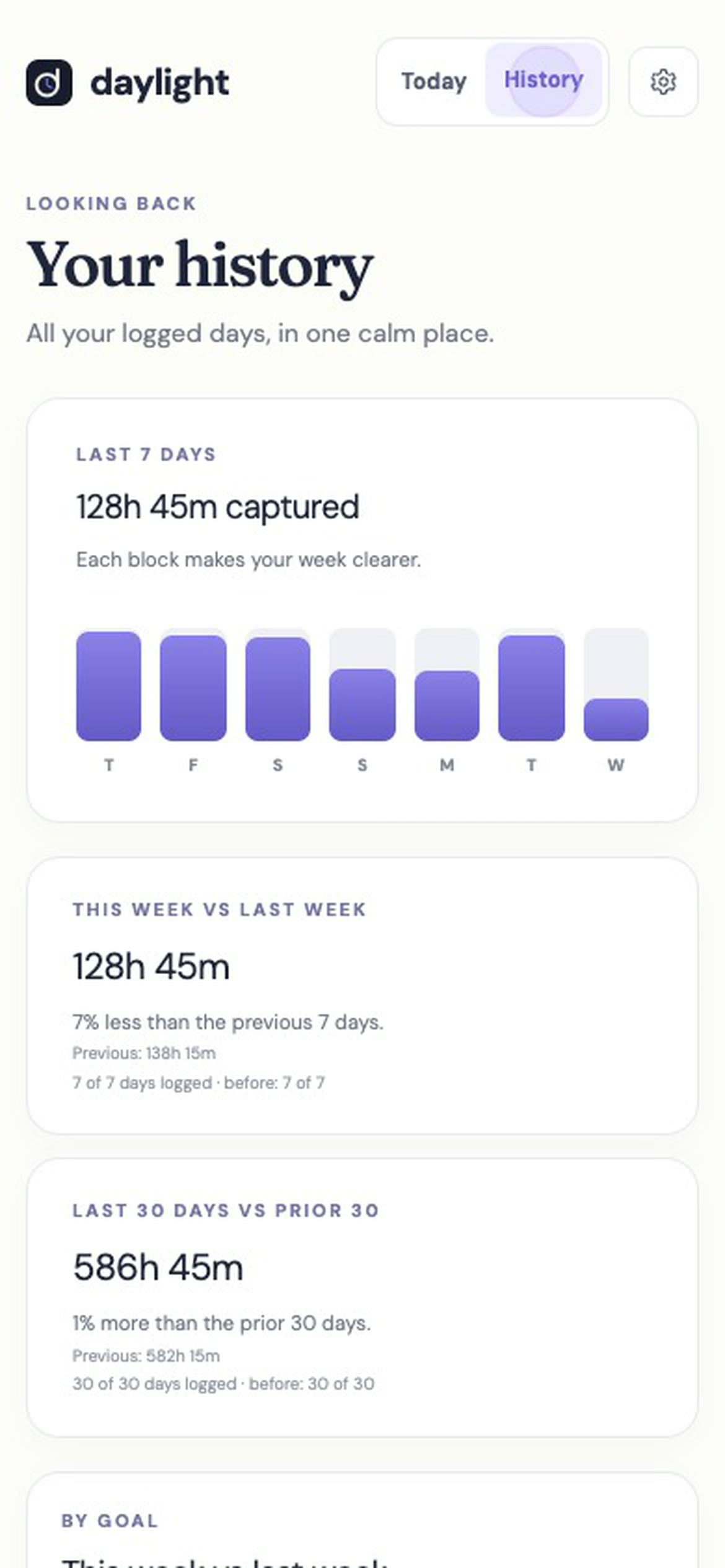
History compares this week with last week and the last 30 days with the 30 before. Use those comparisons to review whether your next week's changes gave the intended goals more time.
Daylight logs the time you enter; it has no timer and does not watch your devices.
Daylight Pro is $4.99 a month or $39.99 a year, plus applicable sales tax, with a 14-day free trial. There is no free plan: a valid payment method is required, and charging starts after the trial unless you cancel.
Time audit FAQ
How long should a time audit take?
Use one full week for your first review so it includes both your regular commitments and days off. Repeat if that week was unusual or if you need to check a change.
How detailed should my log be?
Write enough to identify an activity and its duration; split the entry when you switch activities. You do not need a separate category for every email or errand.
What if my total is less than 168 hours?
Check for missing sleep, gaps between blocks and forgotten evenings. Leave any remaining gap labelled unrecorded, and account for a clock change if your week crosses one.
Do I have to change every category?
Choose the gap that matters most to a goal you want to protect. Keep the other allocations steady while you see how that first adjustment works.
Find where a day goes before reviewing a week
For a shorter first check and examples of small tasks adding up, read where does my day go?
Track your hours in a sheet
For columns, weekly formulas and a worked log, see our time tracking spreadsheet guide.
To review changes by goal, compare this week to last week with a 15-minute review and worked hour tables.
Use an unwanted gap to choose a specific change with how to stop wasting time.
For a day-level comparison and help interpreting each difference, see planned vs actual time.
Sources
Read November 15, 2026. The example and audit steps are original illustrations; Daylight product details and pricing were checked against these live pages:
- Daylight time blocking guide — goals, blocks, History and subscription terms.
- Daylight time tracking app guide — entered time and period comparisons.
- Daylight support — subscription management and product guidance.