Hour by hour planner: put today on the clock.
To plan your day hour by hour, put fixed commitments on the clock first, add meals and travel, then give each priority a start and end time. Leave a named buffer for delays and include the evening; the worked 6 AM to 10 PM plan below shows how to fit 16 daytime hours around 8 overnight hours.
Try Daylight on the webUse the same Daylight account on web, iPhone and Android.
Build the outline before filling each hour
Place the immovable times
Write down the exact start of a shift, appointment or school pickup, then include the journey and preparation it needs.
Choose an output for each work slot
Give 9–10 AM a concrete job such as drafting an introduction, rather than writing “be productive” across the morning.
Include the ordinary parts of the day
Breakfast, dinner and household jobs occupy clock time even if they never appear on your task list.
Put a buffer beside the likely overrun
A late-afternoon gap can absorb a work delay; a gap after dinner cannot protect an earlier fixed appointment.
Check the joins
Read each end time against the next start time, splitting an hour when a commitment begins at half past.
A worked 6 AM to 10 PM plan
The following example assigns 16 consecutive hours, with one hour per row and a clear stopping point at 10 PM. Its overnight window is 10 PM–6 AM, accounting for the other 8 hours; the durations illustrate one person's arithmetic rather than a schedule everyone should follow.
| Time | Activity | Hours |
|---|---|---|
| 6–7 AM | Get ready | 1 |
| 7–8 AM | Breakfast | 1 |
| 8–9 AM | Commute | 1 |
| 9–10 AM | Work | 1 |
| 10–11 AM | Work | 1 |
| 11 AM–noon | Work | 1 |
| Noon–1 PM | Lunch | 1 |
| 1–2 PM | Work | 1 |
| 2–3 PM | Work | 1 |
| 3–4 PM | Work | 1 |
| 4–5 PM | Work | 1 |
| 5–6 PM | Commute | 1 |
| 6–7 PM | Dinner | 1 |
| 7–8 PM | Home tasks | 1 |
| 8–9 PM | Open time | 1 |
| 9–10 PM | Reading | 1 |
| Total | 16 | |
Seven of these hours go to work, three to meals, two to commuting and one each to getting ready, home tasks, open time and reading: 7 + 3 + 2 + 1 + 1 + 1 + 1 = 16.
Leave buffer where a delay can actually land
The 20:00–21:00 open hour is the buffer in this example, not another task waiting to be assigned. If dinner ends 30 minutes late, move home tasks to 19:30–20:30: open time becomes 20:30–21:00, and reading still starts at 21:00.
For a different plan, split that same hour into four 15-minute gaps near transitions. Four × 15 = 60 minutes; take those minutes out of another allocation rather than adding them on top of a full day.
If a delay exceeds the available buffer, shorten, move or drop a flexible activity explicitly. For example, a 90-minute overrun uses the 60-minute buffer and still needs a 30-minute reduction elsewhere; fixed commitments do not move just because the table is crowded.
Revise the next hour when the plan changes
Suppose the 9–10 AM draft is unfinished at 10 AM and the next slot has a fixed meeting. Leave the meeting in place and write the remaining drafting step into the next available work slot; do not count the same hour toward both activities.
If the work is optional, decide whether to shorten it, move it to another day or remove it. When the same task repeatedly exceeds its slot, use the entered duration to size the next attempt.
The time block planner guide helps you choose a place to hold these blocks, while the daily schedule planner offers broader examples for different kinds of day.
Lay out the whole day in Daylight blocks
Give each Daylight goal a color and target hours, then lay its blocks across the 24-hour view. A block can last from 15 minutes to 8 hours, using 15-minute steps, so an hour can become two half-hour appointments or four smaller allocations.
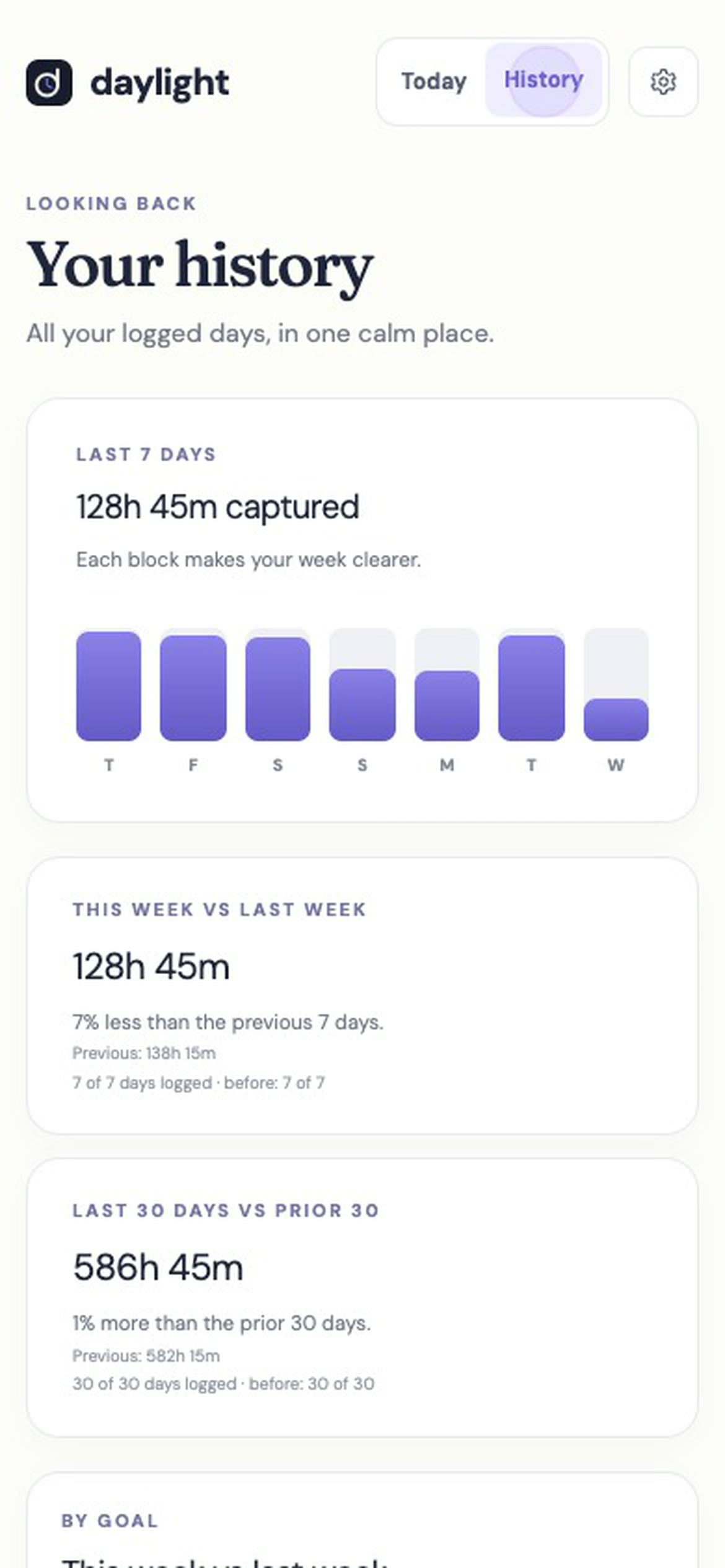
Enter the time spent against the relevant goal and add a note when a delay needs explaining; Daylight logs those entered hours. Its History view places this week beside last week and the last 30 days beside the 30 before, helping you review the entries after several days of adjustments.
Daylight Pro costs $4.99 a month or $39.99 a year, plus applicable sales tax, and starts with a 14-day free trial. A valid payment method is required; there is no free plan, and charging begins after the trial unless you cancel.
Sources
Sources reviewed November 18, 2026. The clock table and buffer calculations are fictional worked examples; the planning steps are original advice.
- Daylight home page — current goals, block durations, manual entries, History, supported devices and subscription.
- Daylight time blocking guide — planning workflow and trial conditions.
- How to stop wasting time — guide shell, image and Sources layout.