Planned vs actual time: see where your day changed.
Keep your original plan, record the time you actually spent, and put the hours beside each other for each goal. Subtract planned hours from logged hours: a positive difference means more time spent; a negative difference means less. Check the entries behind the largest gap before changing tomorrow’s plan.
Start on the webAlso available on iPhone and Android.
Why compare planned and actual hours?
A task can be finished and still take twice its allocated time. Comparing hours shows which goals received the time you intended and which activities displaced them, so you can change the allocation rather than simply carry unfinished work forward.
Keep two questions separate: did you give a goal its planned hours, and did those hours produce the result you wanted? A zero time difference answers only the first question; record the output in a note if you also want to review progress.
How to compare your day by hand
Save the plan before the day starts
Write each goal or activity and its allocated hours in a notebook or sheet. Preserve that original column when plans change; replacing it with the final schedule hides the difference you are trying to understand.
Record what happened using the same names
Note the activity, start and end time, and any reason for a change. A 9:00–10:15 AM writing session is 1.25 hours; a 15-minute reply session is 0.25 hours.
Count each minute once, splitting a block when you switch activities. Mark forgotten intervals as unrecorded instead of assuming that a blank entry means no time was spent.
Total and subtract for each goal
Add the recorded durations under each goal, then calculate difference = logged hours − planned hours. Compare the same date range in both columns and include sleep, meals, travel and time left open if you are reviewing a whole day.
Check the record before changing the target
For a complete ordinary day, each column should total 24 hours. Resolve overlaps and missing entries first; for a longer baseline, use the time audit guide.
A worked day: planned, logged and difference
This fictional day uses hours throughout, with each activity assigned to one row. The last column is logged minus planned, so −0.5 means half an hour less than intended.
| Goal / activity | Planned (h) | Logged (h) | Difference (h) |
|---|---|---|---|
| Sleep | 8 | 8 | 0 |
| Writing | 4 | 2.5 | −1.5 |
| Meetings | 2 | 2.5 | +0.5 |
| Admin | 1 | 2 | +1 |
| Learning | 1 | 0.5 | −0.5 |
| Meals / care | 4 | 4 | 0 |
| Travel | 1 | 1 | 0 |
| Leisure | 3 | 3.5 | +0.5 |
| Total | 24 | 24 | 0 |
Writing’s calculation is 2.5 − 4 = −1.5 hours. Meetings and admin together gained 1.5 hours, while learning lost 0.5 and leisure gained 0.5; the differences balance to zero even though individual goals missed their allocations.
The numbers show where to look, but they do not establish why the day changed. Read the entries to distinguish a required meeting extension, an underestimated admin task and a deliberate choice to spend longer on leisure.
What the differences tell you to change
- More time than planned: check whether the task needed longer or another activity interrupted it. If admin repeatedly takes 2 hours, budget that amount or remove a specific admin task before allocating the hour elsewhere.
- Less time than planned: check for missing entries, then identify the block that moved or disappeared. If writing finished early, note the result; if it was displaced, decide which competing commitment can move.
- No difference: the hours matched the allocation, but check the output before assuming the goal is complete.
- Unrecorded time: treat it as an evidence gap, keeping it visible until you can reconcile the record.
For the example’s next day, keep the logged allocations as a starting point, then move 30 minutes of optional leisure to learning. That gives learning 1 hour and leisure 3 hours while leaving the full-day total at 24; increase writing only after naming another block that can shrink or move.
Review several comparable days before making a lasting target change, and mark unusual deadlines or travel in the notes. Use one adjustment at a time so the next comparison can show whether that block happened.
See planned vs logged time in Daylight
Create goals with colors and target hours, then place blocks across all 24 hours in 15-minute steps, from 15 minutes to 8 hours per block. Daylight shows the hours you planned beside the hours you logged, so you can compare the allocation for each goal with the recorded time.
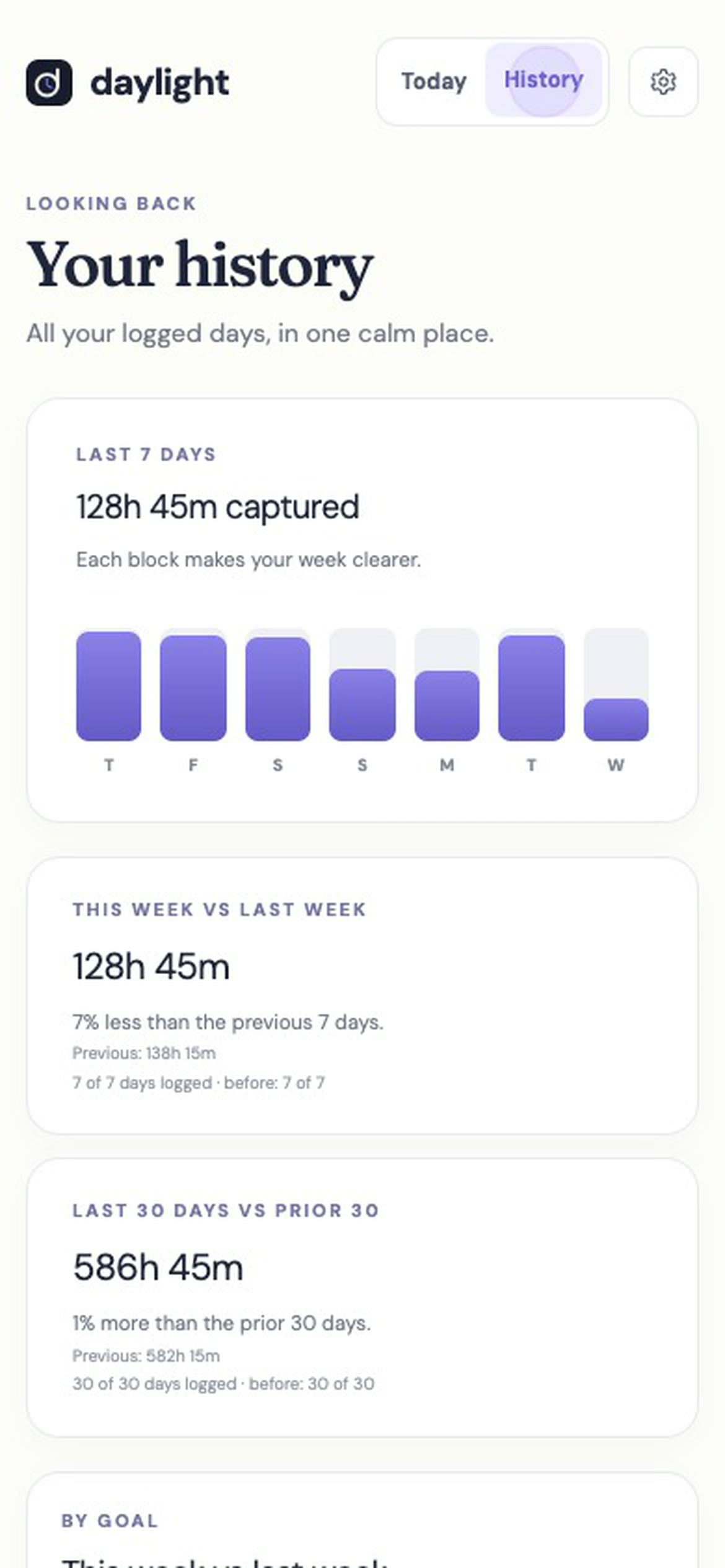
Daylight logs the time you enter against a goal, with an optional note; keep those entries current so the comparison reflects your day. History compares this week with last week and the last 30 days with the 30 before.
Use planned versus logged hours to review intention against the record, and the History periods to see how your recorded allocation changed over time. For example, writing rising from 10 logged hours last week to 12 this week is a 2-hour increase; check this week’s target separately to decide whether it matched your plan.
Daylight Pro is $4.99 a month or $39.99 a year, plus applicable sales tax, with a 14-day free trial. There is no free plan: a valid payment method is required, and charging starts after the trial unless you cancel.
Sources
Read November 18, 2026. The method and worked figures are original illustrations, not population statistics or performance claims.
- Daylight home page — goals, target hours, block sizes, planned versus logged hours, entered time, History periods and trial pricing.
- Daylight guide to changing unwanted time gaps — interpreting time gaps and subscription terms.