How to set up a time tracking spreadsheet
Use four columns: date, category, activity and hours. Add one row per activity block, enter durations as decimal hours, then total the week by category to see where your time went.
Start on the webThe worked example and formulas below explain the setup.
Plan the hours before logging them
Our time blocking template guide shows three complete schedules to adapt before recording what actually happened.
The four columns to start with
Put these headers in row 1 of a sheet named Log. Each row represents one non-overlapping block; split a row when its category changes.
| Column | Enter | Example |
|---|---|---|
| A: Date | The block's calendar date | 2026-11-09 |
| B: Category | A consistent group name | Project work |
| C: Activity | What you did | Draft proposal |
| D: Hours | Numeric decimal hours | 1.5 |
Enter dates as date values and hours as numbers, not text such as “1h 30m”. Divide minutes by 60: 30 minutes is 0.5 hours, 45 minutes is 0.75, and 90 minutes is 1.5.
Choose what the log covers
For work only, leave sleep and personal time out and label the result as work hours. For a whole-life audit, include those categories too; do not compare a work-only total with a complete 168-hour week.
Use the same category names each day
Start with a few groups such as Project work, Admin and Personal project. Keep specific task names in Activity so “Admin” and “Email admin” do not become separate totals by accident.
Record blocks while you remember them
Write down the duration after a block ends. If two activities overlap, allocate the minutes once and explain the overlap in the activity description; leave an uncertain gap visible rather than guessing.
A worked one-week example: 44 logged hours
This fictional November 9–15, 2026 log covers work and a weekend personal project, not every hour of life. The table groups the activity rows by day; all numbers are decimal hours.
| Day | Project work | Admin | Personal project | Total |
|---|---|---|---|---|
| Mon | 6 | 2 | 0 | 8 |
| Tue | 5 | 3 | 0 | 8 |
| Wed | 6 | 2 | 0 | 8 |
| Thu | 7 | 1 | 0 | 8 |
| Fri | 4 | 4 | 0 | 8 |
| Sat | 0 | 0 | 2 | 2 |
| Sun | 0 | 0 | 2 | 2 |
| Week | 28 | 12 | 4 | 44 |
The five workdays each total eight hours: 40 work hours plus two hours on Saturday and two on Sunday gives 44 logged hours. By category, 28 + 12 + 4 = 44, so both views reconcile.
For Monday, enter a six-hour Project work row and a two-hour Admin row, both dated November 9. Continue with two rows for each remaining workday, then one Personal project row for each weekend day: 12 activity rows in total, occupying rows 2–13.
Formulas for weekly totals by category
In the same Log sheet, set G2 to the week's start date, November 9, 2026, and G3 to the next week's start, November 16, 2026. Put Project work, Admin and Personal project in G6, G7 and G8, with totals in H6:H8.
In H6, use the Google Sheets SUMIFS function to sum hours where the category matches G6 and the date falls within the selected week:
=SUMIFS($D$2:$D$1000,$B$2:$B$1000,G6,$A$2:$A$1000,">="&$G$2,$A$2:$A$1000,"<"&$G$3)Fill H6 down through H8; the fixed ranges stay in place while G6 becomes G7 and G8. The example returns 28, 12 and 4 respectively; H9 can use =SUM(H6:H8) for the category total.
For an independent weekly total in H10, omit the category condition:
=SUMIFS($D$2:$D$1000,$A$2:$A$1000,">="&$G$2,$A$2:$A$1000,"<"&$G$3)Check H10 against H9: a difference means a logged category is missing from your summary. The start is included and the next Monday is excluded, so adjacent weeks do not count the same date twice.
These formulas cover rows 2–1000; extend every referenced range together before the log outgrows them.
When an app is easier
A sheet suits a small log when you want to choose your own categories and calculations. Consider an app when maintaining rows and weekly summaries gets in the way of reviewing your time.
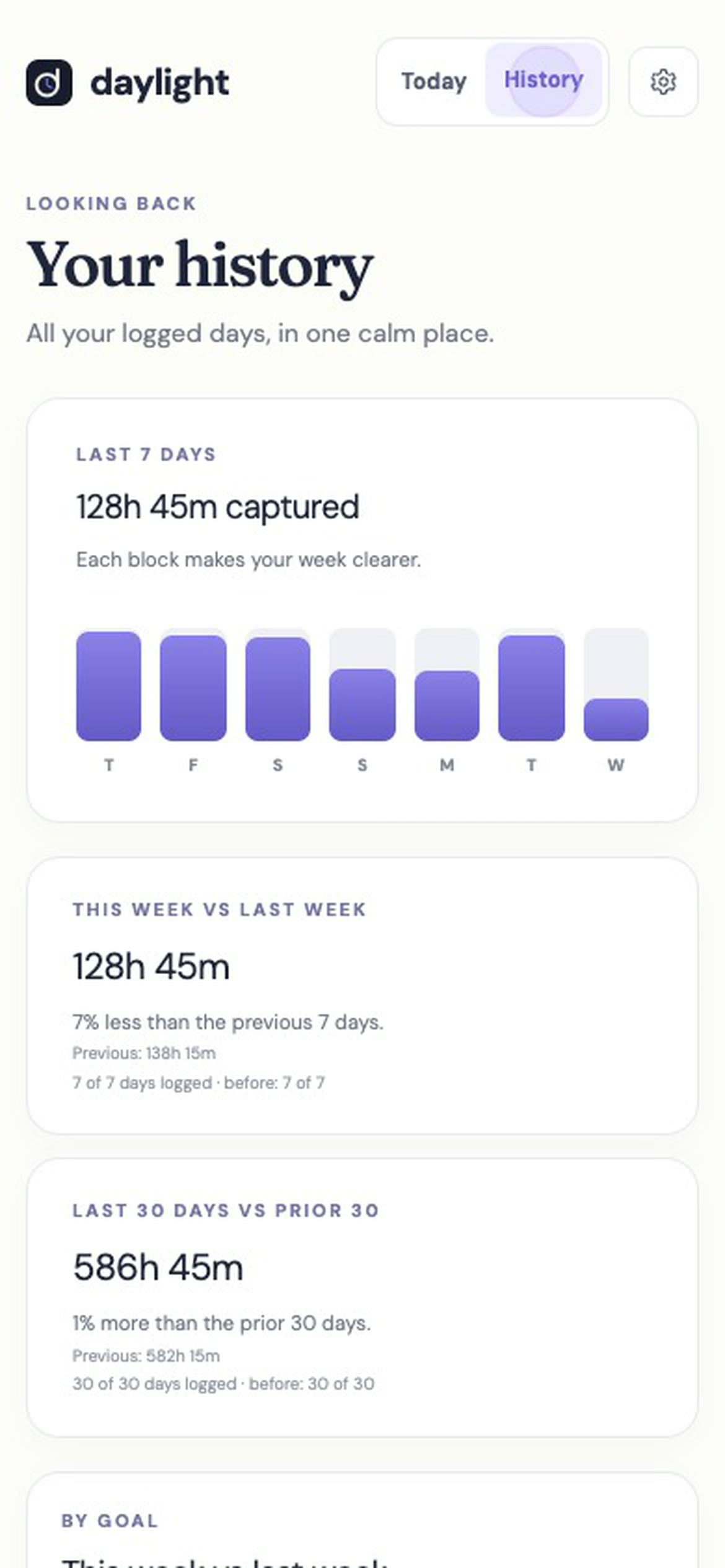
Daylight lets you set target hours for goals, plan blocks and compare entered time across periods in History. It logs time you enter, has no timer and does not track your devices.
Daylight Pro is $4.99 a month or $39.99 a year, plus applicable sales tax, with a 14-day free trial. There is no free plan: a valid payment method is required, and charging starts after the trial unless you cancel.
For a review that includes evenings, sleep and days off, follow our time audit guide.
Sources
Read November 16, 2026. The log and worked numbers are original illustrations.
- Google Sheets: SUMIFS — summing a range with multiple conditions.
- Google Sheets: SUM — adding values and ranges.
- Daylight home — product features, subscription prices and trial terms.