Timeboxing: give a task a time limit.
Timeboxing means choosing how much time a task gets before you begin, then stopping to review when that time ends. Choose a result, set a limit, and decide what happens to unfinished work. For example: spend 30 minutes drafting three report headings, then review the draft instead of polishing all afternoon.
Start on the webAlso available on iPhone and Android.
From a list to a day that fits
To decide which tasks should receive a slot first, read time blocking vs to-do list and check a seven-item plan against the hours available.
Timeboxing vs time blocking
Timeboxing answers “how long will I give this?” Time blocking answers “when will I do it?” You can use both for the same task.
| Method | Decision | Example |
|---|---|---|
| Timeboxing | Limit the effort and define a stopping point. | Draft for 90 minutes, then review what is ready. |
| Time blocking | Reserve a place on the day’s clock. | Work on the report from 8:30 to 10:00. |
| Both together | Book the slot and set the finish rule. | At 10:00, save the draft and list the gaps. |
For placing those slots across the day, follow the time blocking guide.
How to timebox your day in 5 steps
Account for the whole day
Start with 24 hours and mark sleep, meals, appointments and travel. Keep those commitments visible before assigning the remaining hours to tasks.
Name a result small enough for one box
Replace “work on report” with “draft the introduction and three headings.” For open-ended work, choose a checkpoint such as a list of unanswered questions.
Choose a limit and a review rule
Try 30 minutes for a small task or 90 minutes for a draft, then adjust using your own records. Decide in advance: when the box ends, stop, save the result and choose whether the remainder needs another slot.
Put boxes on the clock and leave a buffer
Schedule around fixed commitments, include breaks, and reserve an unassigned slot for interruptions. If extra work needs a new box, say which available time will pay for it.
Record actual time and revise tomorrow
At the checkpoint, note what you completed and the time it took. Compare planned and actual hours by activity; repeated overruns are a reason to shrink the task or enlarge its next box.
A worked timeboxing day: 24 hours accounted for
This illustrative weekday uses a 24-hour clock. Each task box has a concrete checkpoint; personal time and sleep stay in the plan so the arithmetic covers the entire day.
| Time | Activity and checkpoint | Hours |
|---|---|---|
| 00:00–07:00 | Sleep | 7 |
| 07:00–08:00 | Breakfast and getting ready | 1 |
| 08:00–08:30 | Messages: identify today’s replies | 0.5 |
| 08:30–10:00 | Report: save an introduction and three headings | 1.5 |
| 10:00–10:30 | Break | 0.5 |
| 10:30–12:00 | Meetings: finish with decisions and next actions | 1.5 |
| 12:00–13:00 | Lunch | 1 |
| 13:00–14:30 | Report: review the draft and list missing evidence | 1.5 |
| 14:30–15:00 | Break | 0.5 |
| 15:00–16:00 | Admin: process the priority queue, flag the rest | 1 |
| 16:00–17:00 | Buffer: available for a deliberate extra box | 1 |
| 17:00–18:00 | Errands and travel | 1 |
| 18:00–20:00 | Dinner and home tasks | 2 |
| 20:00–21:00 | Reading | 1 |
| 21:00–24:00 | Personal time and winding down | 3 |
| Total planned | 24 | |
The report has two 90-minute boxes, for 3 hours in total. At the second checkpoint, suppose the draft still needs a final evidence check: stop and deliberately allocate 30 minutes from the buffer, rather than letting the task keep growing without a decision.
Planned vs actual: where did the extra hour go?
In this example, the report uses an extra half-hour and admin uses another half-hour. Both come from the reserved buffer; the other activities keep their planned hours.
| Activity | Planned hours | Actual hours | Change |
|---|---|---|---|
| Report | 3 | 3.5 | +0.5 |
| Admin | 1 | 1.5 | +0.5 |
| Unused buffer | 1 | 0 | −1 |
| Everything else | 19 | 19 | 0 |
| Total | 24 | 24 | 0 |
The day still adds to 24 hours, but the buffer is gone. Tomorrow, narrow the report’s first draft or allow a larger report box; do not add an hour without taking it from somewhere else.
Common timeboxing mistakes
- No finish rule. Define what you will save or review when the limit arrives, even if the task is incomplete.
- Extending every box silently. Make each extension a fresh scheduling decision with an explicit source of time.
- Trying to finish a large project in one sitting. Box a deliverable such as one section or one decision, then reassess the remaining work.
- Filling all available hours with tasks. Include transitions and breaks, and keep some time unassigned.
- Treating the limit as a quality guarantee. Check the output before using it; a finished box can still leave a task needing revision.
How Daylight supports timeboxing
To reserve longer windows for one demanding task, read how to make time for deep work and check a week of planned and logged focus hours.
Daylight lets you give goals target hours and place blocks across the full day. Blocks range from 15 minutes to 8 hours in 15-minute steps, so the example’s task boxes fit its planning format.
After a box, enter the time spent against its goal and optionally add a note about the result. Daylight logs the time you enter; it has no timer and does not watch your devices. You decide when to stop and review.
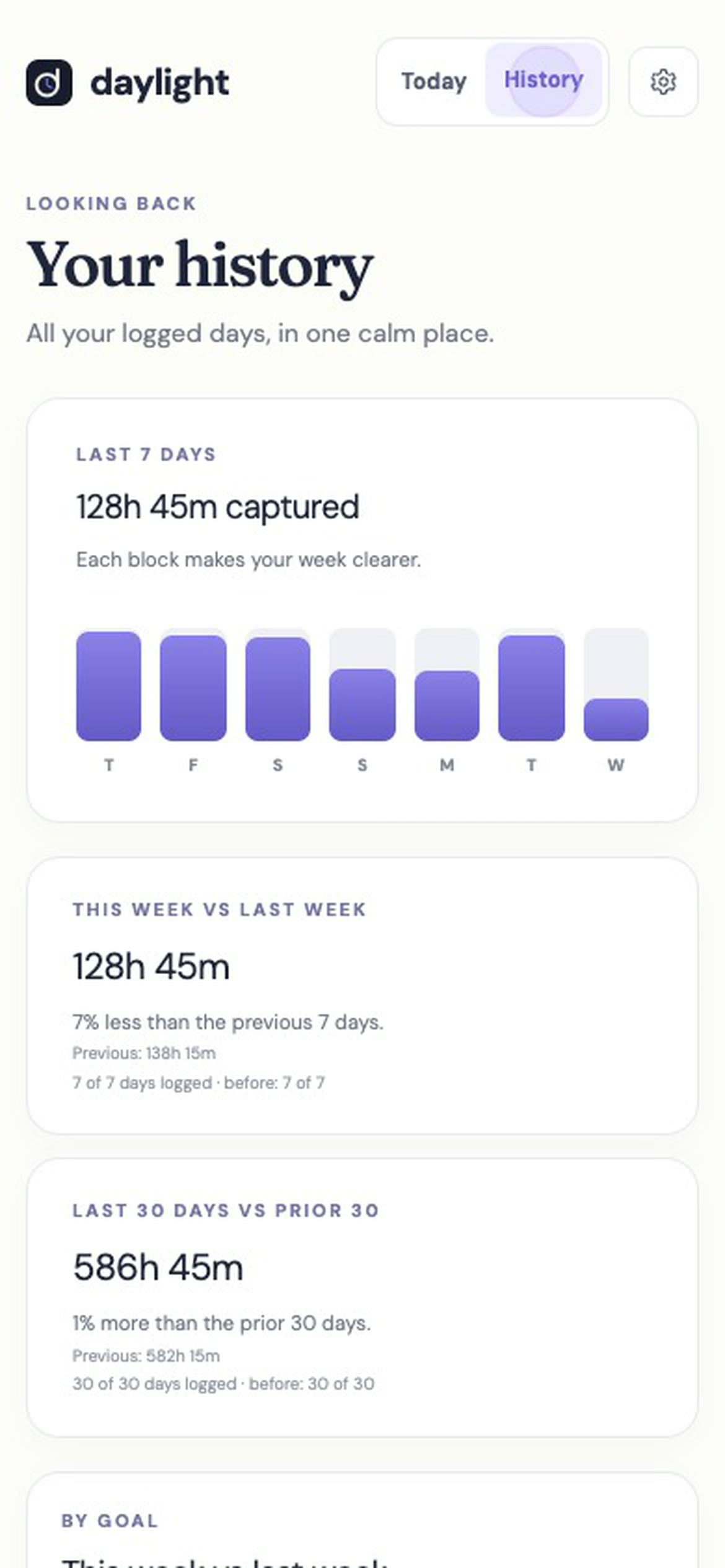
History compares this week with last week and the last 30 days with the previous 30. Use that review to see which goals received the hours you intended.
Daylight Pro is $4.99 a month or $39.99 a year, plus applicable sales tax, with a 14-day free trial. There is no free plan: a valid payment method is required, and charging starts after the trial unless you cancel.
Sources
Read November 18, 2026. The method, stopping rules and example numbers are original illustrations. Product details and the subscription line were checked against these live Daylight pages:
- Daylight home — goals, block sizes, entered-time logging, History and trial terms.
- Daylight time blocking guide — planning workflow and exact Pro offer wording.