Time tracking app for the day you actually lived.
Daylight logs the time you enter against your goals and activities. Plan your 24-hour day, then look back at your logged hours to see where the day went.
Start on the webAlso available on iPhone and Android.
Plan a freelance workweek
Use the freelancer time blocking guide to budget client work, admin and outreach, then review a worked week of target and logged hours.
Time tracking apps: start with what you want to see
If you want to see how you spent your hours, start by logging them against the activities they belong to. In Daylight, each goal has a color and target hours. You log the time, can add a note, and can edit or delete an entry.
Your plan and your logged time tell two parts of the same story: what you intended to do, and what happened.
For the whole plan, log and review loop, see our productivity app guide.
How it works in 3 steps
For a manual recording method and a complete example day, see how to log your day.
To review changes by goal, compare this week to last week with a 15-minute review and worked hour tables.
For a structured review of your logged hours, follow our time audit guide with a worked example week.
Name your goals and plan your hours
Sign in with Google or Apple. Add goals and activities, give each a color and target hours, and place your day in blocks from 15 minutes to 8 hours, in 15-minute steps.
Log the time you spent
Enter time against a goal and add a note if you want to. Edit or delete entries when you need to correct them.
Look back in History
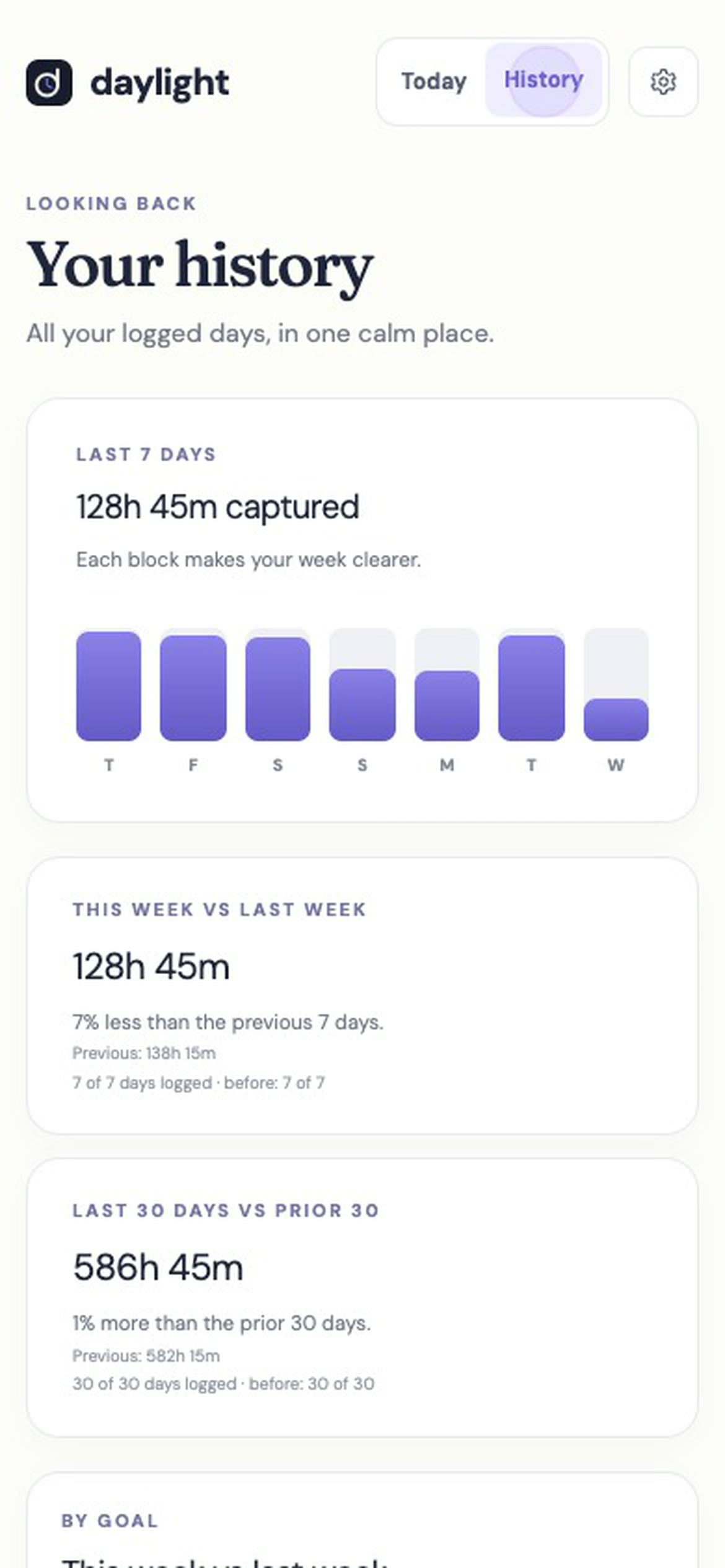
See the hours you logged. Compare this week with last week, and the last 30 days with the 30 before.
What’s the best app for time tracking?
The best fit depends on how you want to record your day. Daylight is for planning the whole 24 hours around your goals and entering the time you spent. Choose it if you want your planned hours beside what happened, with History to look back across weeks and months. For the planning side, see our guide to apps for time management.
What Daylight is not
Daylight does not track you in the background. It logs the time you enter.
Daylight has no streaks. It plans your hours rather than serving as a to-do list for tasks.
There is no free plan. Daylight Pro has a 14-day free trial; a valid payment method is required and charging starts after the trial unless you cancel.
Prefer a spreadsheet?
Use our time tracking spreadsheet guide for a four-column log, weekly totals and a worked example.
Time tracking app FAQ
Does Daylight record time for me?
No. You enter time against a goal. You can add a note and edit or delete the entry.
Can I use Daylight across devices?
Yes. Your goals, targets and logged time follow one Daylight account across the web, iPhone and Android.
Can I log time offline?
On iPhone and Android, time you log offline saves on the phone and syncs when you’re back online. The web app needs a connection to save changes.
Can I export my time history?
Yes. In Settings you can export your time history as a CSV file or your whole account as a JSON backup.
Where do I manage my subscription?
Manage or cancel where you bought it. See Daylight support for web, App Store and Google Play instructions.